Showing posts with label Android. Show all posts

How to Save Google Maps Offline on Android and iOS

Google maps for android has been a reliable navigation system for me. It doesn’t matter where you are on earth, if you have access to a internet connection, google maps will help you find the way to your destination. But as we all know Google maps heavily depends on your phone’s data connection to download maps. When you are connected to a somewhat fast internet connection, loading maps on Google maps would be a breeze. But as soon as your connection speed drops, Google maps would take a long time to load maps.
This is where you can make use of Google Map’s new Offline mode for saving specific areas of a map onto your device’s storage. The offline storage mode is a new addition to Google maps, which was released just yesterday alongside the integration of Uber with Google now and Google maps. The updated version of Google maps is now available both for Android and iOS devices.
Before this new update, there was no such thing as a true offline mode in Google maps. However there were a few tricks by which you could cache offline maps for a specific area, but this was less than initiative.On the new version of Google maps, that is version 3.0 for iOS and version 8.0 for Android, the process of saving offline maps has become very streamlined.
For those who need to save a section of an map for offline use, the instructions below will show you how to save maps offline on the android version of Google maps.

How to Save Google Maps Offline

  • Step 1: Update Google maps to the latest version from the links provided for the respective versions of the app at the bottom of this page.
  • Step 2: Once you have the latest version of Google maps installed on your iOS or Android devices, launch Google maps.
  • Step 3: Browse the map of a place which you want to save offline and tap on the profile icon next to the search bar.
tap on profile icon in google maps 225x400 How to Save Google Maps Offline on Android and iOS
  • Step 4: On the next page, scroll to the bottom and tap on “ Save map to use offline “
tap on save maps to use offline on android google maps How to Save Google Maps Offline on Android and iOS
  • Step 5: You have now entered the offline maps section. Pan or Zoom the area of the map which you want to save for offline use
  • Step 6: Tap on the Save at the bottom of your phone’s screen.
save google maps offline android and ios How to Save Google Maps Offline on Android and iOS
  • Step 7: Type in a name for the saved maps and tap on Save to save the entire area of the map visible on your phone’s screen.
type in a name for the saved offline maps How to Save Google Maps Offline on Android and iOS
Google maps will now save the map for offline use. For those who have a slow data connection, you can use the offline mode in Google maps to save maps offline and later use them to navigate though the place. As for limitations, you should know that offline maps will be stored for a duration of 30 days, after which they will be purged to free up space on your phone.
offline maps being saved on android ios google maps 1 How to Save Google Maps Offline on Android and iOS

Source fromhttp://www.techverse.net

Get 50GB of Free Cloud Storage with the new Box App on Your iOS Device

Popular cloud storage service Box has quietly announced the launch of its completely revamped iOS app for the iPhone and iPad. And with that, the company has even decided to give a whooping 50GB of free cloud storage to everyone who downloads the new Box app within the next 30 days. The free storage space is definitely more than its previous allocation of 10GB per new user.
ios blogimage 11 Get 50GB of Free Cloud Storage with the new Box App on Your iOS Device
According to Box, the revamped Box app is now deploys an entirely new user interface which makes the new app much faster than its previous versions. The new Box app is now capable of previewing more than 100+ file types and even supports full text search within documents.
With the new Box app, the company expects to offer the best user experience to securely store and manage data from mobile devices. The 50GB of free cloud storage is definitely a big attention grabber but what box actually wants to do is to create a big user base and eventually introduce new services to them like their own BoxNote. This seems like a good plan but feature wise box is still lagging behind its contenders.
You can download the Box iOS app to grab your complimentary free storage space of 50GB. Do remember the offer lasts till the 15th of february. Let your friends and family know about it so that they can benefit from it too.

Source fromhttp://www.techverse.net

How to fix ”Unfortunately app has stopped” – Beginners alert!

There is a problem that plagues not only beginner users, but advanced Android owners alike (the only difference is the latter usually know how to fix it): sometimes when you are using an app, it will suddenly close and the message ‘unfortunately (fill in the blank) has stopped’ will appear. This message also show up when you aren’t even using the app. Here is a way to fix this issue.
nexus 5 first steps teaser
 © AndroidPIT

Clearing up app storage

This problem often arises with the contacts, gallery and launcher apps, among many others. For example, I always receive the ‘Unfortunately contacts has stopped” error on my Galaxy S3 and it’s particularly annoying. The procedure to fix this is generally always the same.
  • First, you must navigate to the settings on your Android smartphones.
  • Scroll down until you see Application Manager or Apps, the name differs per Android device.
  • Swipe left until you find the ‘All’ applications tab.
  • Scroll down to the app that stopped and tap on it.
  • Here you will clear the data and cache.
What you need to understand is that clearing the data will erase the changes made to the app’s settings, but not the actual content, like pictures in the gallery app for example. Cleaning the cache will get rid of saved data which allow apps to load much quicker when you launch them. Erasing this will only slow opening up an app a little bit, but will also help solve the problem.
androidpit google play 1
In addition to clearing the cache with the red arrow, you always want to clear the data, this will erase any saved settings for the app in question.© AndroidPIT

Uninstall the app

If the app isn’t a built-in app, like Contacts for example, you can also try uninstalling and reinstalling the app again from the Google Play Store. Simply open the Play Store app and open the menu bar on the left hand side and tap on ”My apps”. Find the app in question and hit uninstall, which takes a few seconds. Atterwards, you can install it again.

Soft reset

You can also try doing a soft reset. This is super simple and is quite effective if your phone has been on for a long time. A soft reset will power cycle your phone, meaning turning it off and then back on again. This of course won’t delete anything. It’s a good idea to turn your phone off every few days for a few minutes and will help a sluggish phone with a variety of issues, whether app, network, audio, email issues and more.
In the case of Google Play itself not working, the solution is a little more extensive: delete the cache as a first step and if this doesn’t clear things up, you can then clear your data, and finally uninstall any Play Store updates. The same goes for Google Play services, but try these one by one, you don’t want to lose all your Play Store preferences for no reason. Check out the complete tutorial on what to do when the Google Play Store isn’t working.

Last resort: factory reset

In the worst case scenario when nothing is working, you can resort to a factory reset, but again, this really shouldn’t be done until no other option presents itself. When doing a factory reset, ensure that you have backed up all of your data beforehand. I repeat: backup all of your data first. I mean it. Do it. A factory reset will wipe your device to factory defaults, taking any bugs with it. You can then restore your apps and data afterwards.
Did this fix the problem for you? What others fixes do you know for these little pesky Android problems that you can share with your fellow beginner users?
Source fromhttp://www.androidpit.com

8 tips on how to protect your Android touch screen

Noways, smartphones and tablets come with the toughest and most scratch-resistant touch screen panels, thanks to such materials like Corning Gorilla Glass. It takes a lot to break and damage them. This, on the other hand, is not impossible if you behave recklessly with your Android device. Here are some precautions to consider in using your touchscreen.
vetro rotto
 © Photographee.eu / shutterstock.com
1. Only use your fingers or stylus, if one comes with the device, like the Galaxy Note 3 for example. The Sony Xperia Z Ultra allows you to use pencils on the display, however this should not be done with any other device.
galaxy note 3 test 8
Only use your stylus or finger on an Android touch screen, and for pete’s sake, be gentle! © androidpit
2. Avoid letting your touch screen come into contact with other electrical devices. There are many people who think that magnets will damage your phone, when it fact it likely won’t. The only thing that a magnet might do is mess up your built-in magnetic sensor which is used for compass apps.
3. Electrostatic discharges, meaning a sudden surge of electricity between two connected electrical devices, could ultimately cause the touchscreen to malfunction. This might happen when your smartphone is placed near an object isolated to the ground that conducts electricity.
4. This may seem obvious, but do not tap your phone with any sharp objects or bang it to make it work if it’s being laggy. Your smartphone isn’t like your old TV set. Also, though you might get over excited while playing Candy Crush, do not apply excessive pressure to the display.
SmashedScreen
Screen cracks are more common than you think.  © AndroidPIT
5. Ever heard of the term burn-in? This is what sometimes happens when you leave the touchscreen idle for an extended amount of time without deactivating the display. What you’ll see when you switch to something new is an afterimage, ghosting or screen burn-in, all terms apply here. If this is happening to you, check outhow to fix a screen burn-in. To prevent this from happening though, set the lock screen to turn off after a certain amount of time in the settings of your smartphone or tablet under the lock screen section.
6. Invest in a screen protector, sleeve, padded bag or hard case for your tablet or smartphone. There are many cheap but effective ones that you can find on Amazon, WalMart, eBay etc. If you drop your phone, scratches are the least of your worries, but shattering or cracking can happen even with the most durable of panels.
nexus 7 cover folio front
A case, cover, screen protector or pouch keeps your smartphone or tablet looking in top shape. © Google Play Store
7. Avoid exposure to direct sunlight. Leaving your smartphone or tablet with an LCD display out on the patio in mid summer can really damage the quality.
8. When cleaning your display, use a microfiber cloth, which is ideal for touch screens. You can even use the one that came with your sunglasses. Be careful if using a moist cloth. Simply dampen it slightly or breath on the screen and then wipe it down gently. If you do end up using water, make sure that it is distilled water since normal tap water often carries calcium and other types of minerals. Do not over-rub. Let your phone air dry if there is any water left over so that you don’t accidently push any liquid into the phone’s inner hardware.
What tips do you recommend when it comes to taking care of your touch screen?

Source fromhttp://www.androidpit.com

Top 10 most useless features on Android

Smartphones, regardless of the manufacturer, are chock-full of features: voice or gesture commands, applications and varied interfaces… but, sometimes, some of these are really gimmicky and lack any real actual use and often get in the way of a fluid Android experience. Today we’ve compiled 10 functions that we consider to be the most useless on today’s Android devices.
smartphone trash
© AndroidPIT

The O Touch panel – Oppo N1

The Oppo N1 has many useful features, but then there’s the touch panel on the back-side of the device, which goes by the name of O Touch. In theory, it was intended to provide the user with some quick gestures, like launching the camera by tapping it twice, for example. In practice, it’s a whole other story: the 4×4 cm panel on the back is hardly detectable. When attempting to use this feature, be prepared for bursts of frustration and hand cramps. The only advantage: if you don’t use it, it will leave you alone.

Digital fingerprint scanner - HTC One Max

Opinions on the HTC One Max are split right down the middle, but the objective here isn’t to aid either side of the argument. That being said, you have to admit that a smartphone of such an impressive size would be quite hard to handle one-handed, which is a digital fingerprint scanner wasn’t really such a clever idea after all. Not only is this feature not very useful, it’s pretty much impossible to use without making your life a lot more difficult. Next!
htc one max video 1
© AndroidPIT

Screen capture with palm swipe – Galaxy S3 and S4

It’s not hard to see that Samsung has been trying to revolutionize the world of motion gestures for smartphones, but let’s face the facts: once you discover some of these new gestures on your device, the chances of you using them again after trying a first time are slim. One of these hand motions is the palm swipe to capture feature. For those who don’t want to do a little kung-fu Samsung-style overtop of the display, there is a simple button combination to take a screenshot on the Galaxy S3 and S4.
effet realite augmentee
/ © AndroidPIT

Augmented reality effects - Sony Xperia Z1 and Z2

It gets even better. The Sony Xperia Z1 and the Xperia Z2 provide users with a very interesting camera feature for video and pictures: you can add augmented reality effects. This means that, depending on which theme you choose, you’ll suddenly be wearing a scuba diving helmet with fish swimming around you, or it’s carnival and you get an afro….or dinosaurs star terrorizing the scene! The only reason to explain this function is that the developers were likely on the same stuff as Alice in Wonderland, because otherwise, I just don’t get it.

HTC picture stickers – HTC One (M8)

Just like the AR effects on the Sony Xperia Z1 and Z2, this one lands in the same category of randomness. The HTC One (M8) allows users to add stickers to their images. There are some very odd ones too, like colored sunglasses, cowboy hats, gold chains and even a gas mask. You might use it once or twice to ‘spice up’ your pictures, but soon this editing option will land in the abyss of useless features never to be seen again.
face unlock teaser
© Google

Smart gestures: face unlock – Galaxy S3 and S4

This is one of the most useless features that was ever created. Not only does the function to unlock the lock screen with your face not work in the dark, it’s not very secure. Having a code or pattern for an unlocking method is not only more secure, it doesn’t waste any of your precious time. Also, I don’t want to see my face every time I unlock my phone, which I do about every 30 seconds.

Sound & Shot – Galaxy S4

Here we go again with Samsung and the Galaxy S4 camera, which is full to the brim with various software features. One of these is Sound & Shot which records sound for 6 seconds after the picture is taken to add a little ‘’ambiance’. What you will likely hear is something like ‘move to the left, ok a little to the right….’.
video
© AndroidPIT

Tap to unlock – Nokia X

LG was successful in creating the KnockOn feature where you tap twice on the screen in order to unlock the screen. It saves the users a few seconds of time, which is probably why Nokia decided to offer something similar with the Nokia X. The only thing is that Nokia added this function to the entire device, so front, back, etc, which means that the smartphone often turns on when sticking it your pocket or purse. This is more pesky than useful.

Eye scroll – Galaxy S4

It makes sense that Samsung would be in this list more than any other manufacturer, after all, they are the only ones that offer so many different features and some are bound to turn out useless. One of these is eye scroll, which like the name says, uses the movement of your eyes to scroll up and down on a page. The idea isn’t bad, but in practice, it’s the pits. Instead of actually helping, it just gets irritating.
dual camera
 © AndroidPIT

Dual camera mode – Galaxy, HTC and LG smartphones

We’re sorry to keep ragging on Samsung, because in fact, we actually like the feature they present most of the time, but there are some you just have to ask yourself why! Samsung isn’t the only culprit from this next features, some newer LG devices also included it, as well as the HTC One (M8): dual camera mode, which activates the front and back camera at the same time, meaning your face will appear in a tiny box on the viewfinder image. It’s a funny image, that could be used to capture your expression in relation to your feelings about what you are taking a picture of, but aside form that, it’s just a gimmick
In your opinion, what software features do you consider to be useless on today’s Android devices?

Source fromhttp://www.androidpit.com

WiFi Direct is Better than Bluetooth for Sharing Files Between Android Devices

 
wifi-direct-file-transfer
 
Most of us share audio, video, image and other files with our friends using online or offline media. And when it comes to share such files in an offline way, we always prefer to go with our old and classical method Bluetooth. If the file you want to share with or sent to a friend’s mobile or tablet device is small in size, Bluetooth is an okay and universally acknowledged choice. But what is your opinion about sharing a bigger file with another phone? Do you have patience enough to wait smilingly till a 50 MB video is received by your from another mobile device or vice versa?
I used to shirk and pretended not to hear when someones asked me to send a big file to his phone. But now if someone requests me to send a big file to his/her phone, I would just ask, “Has your phone WiFi Direct?” Using this feature, you can send even bigger files very easily and, of course, faster. Actually this file sharing method is not new at all, but I am sure most people do not use it. You would easily find many people who are not acquainted with the WiFi Direct feature, and even aware of its presence on their phone. The feature is present on all Android phones with Android 4.0 (ICS) or above. If you are one who is already enlightened about it, please bare with us.

What is WiFi Direct?

WiFi Direct is basically a wireless technology that allows several WiFi-enabled devices to interact directly with each other without having to go through a router. WiFi Direct will enable you to wirelessly print from a device or enable two players to play against each other in a WiFi-supported video game by directly partnering the two devices. It only requires a device that supports WiFi Direct connectivity.  The technology is newer than and similar to Bluetooth but it is much faster and stronger.
WiFi Direct
The official Android Developers portal explains the term as follows:
Wi-Fi Direct allows Android 4.0 (API level 14) or later devices with the appropriate hardware to connect directly to each other via Wi-Fi without an intermediate access point. Using these APIs, you can discover and connect to other devices when each device supports Wi-Fi Direct, then communicate over a speedy connection across distances much longer than a Bluetooth connection. This is useful for applications that share data among users, such as a multiplayer game or a photo sharing application.

How to Send/Exchange Files Using WiFi Direct:

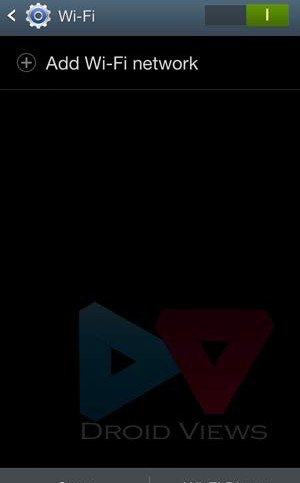
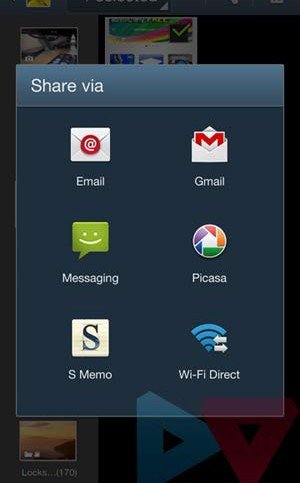
Well, sharing a file via WiFi Direct is as easy as it is with Bluetooth. First of all, you will have to turn on WiFi on both the concerned devices. Open WiFi settings, tap on WiFi Direct and the phone scan and pair with the other phone or tablet. If you want to share a file from your phone’s file manager app, open the app and navigate to the file you want share. Then tap and hold the file item or mark multiple files, tap on the Share icon and from the list of sharing clients that pop-up, and select WiFi Direct.
You can also share the image and video files directly from your phone’s Gallery app. Open Gallery and press and hold a single image/video, or the whole folder. Mark the desired items and tap on the Share via icon from the top bar. In the same way you share a bookmark from your web browser app, video ans music tracks from dedicated apps. All files shared using this feature are saved  by default to ShareViaWiFi folder on your phone’s internal SD card.
Exchange Files Using WiFi Direct
There is also a dedicated app for WiFi Direct that is available for free at the Google Play Store. Its download stats show how much aware people are about this feature.
Source fromhttp://www.downloadchef.com

Hidden Android Secret Codes that you must know

We all know that Android is one of the leading Mobile Operating system. Almost Every House atleast have 1 Android mobile. We all love to Tweak and play tricks with Android Smartphones. Each day we tend to learn More and more about Android Smartphones.
The Popularity of Android is just not because it is Owned by Google but also there are Tons of apps available in Google Play Store for almost every task you can think of.
Android Secret CodesYou might be Well Versed with Android Operating system but you might not know Some Hidden Android Secret Codes that you used to Explore more about android.
Today I will share some Cool Hidden Android Secret Codes that will help you to know more about your Android smartphone and will ease up your Different tasks

Hidden Android Secret Codes

*#*#778O#*#* = Factory Data Reset
*#*#I472365#*#* = Quick GPS Test
*#*#0673#*#* OR *#*#0289#*#*  = Audio Test
*#*#2664#*#* = Touch Screen Test
#’#273283*255*663282*#*#* = Backup Media Files
*#*#0283#*#* = Packet Loopback Test
 
*2767*3855# = Reinstalls The Phones Firmware & Format Your Phone
*#*#232339#*#* OR *#*#526#*#* = WireIess Lan Test
*#*# 1575#*#* = Different GPS Test
*#*#4636#*#*‘ = Complete Information About your Phone
*#*#2663#*#* = Touch Screen Version
*#*#232337#*# = Displays bluetooth Device Address
*#*#4986*2650468#*#* = PDA, Phone. Hardware, RF Call Date
*#*#44336#*#* = Displays Build Time
*#06# = Displays IMEI Number
*#*#8255#*#* = Google Talk Service Monitoring
*#*#I I I I#*#*   |  *‘#*#2222#*#* = FTA Software Version FTA | Hardware \/ersion
*#*#3264#*#* = Rom version
*#*#23233I#‘*#* = bluetooth Test
*#*# 1234#’#’ = PDA and Phone Firmware Info
*#*#0*#*#*= LCD Display Test
*#*#0842#*#* Vibration and Backlight Test
*#*#0588#*#* = Proximity Sensor Test
*#*#232338#*#* = Wi-Fi Mac Address
*#*#7262626#*#*= Field Test
*#*#34971539#*#* = Camera Update
*#*#19732840#*#* = Enable Test Mode
So the Above List Consists of almost 27 Android secret Codes that you might have not known but Since i have shared them here now you are aware of them. So use them whenever you Wish to Check and explore more about your Phone.

Source from http://www.smarttricks.net

How to run Android App on Pc

Needless to say that Android apps are becoming more and more popular when compared to different mobile OS. People are now moving on to use various Android apps and games on their PC’s. Yeah, you heard it right!
Due to many barriers and some other reasons, many of us wants to use Android apps or Android games on our PC. Some of such apps include WhatsApp, Line, Angry Birds and so on. Well, you can also do the same. For this, some sort of applications can be deployed to use, to be specific, Android Emulators, and one such Android emulator is BlueStacks. You can download BlueStacks for PC freely as it is available as a freeware. Although there are several other similar android emulators, but they aren’t free or lags in the functions and features.
Bluestacks-for-PC

Download BlueStacks For PC

Interface and Controls

BlueStacks is a simple to use Android emulator that contains some extensive features. It is freely available to download and gets installed in few minutes. The application will automatically set the environment variables and other system integration. However, there are certain packages that you might need to install including Java Runtime Environment, Android Runtime Environment and some others too.
The interface is quite different and will be a complete surprise, particularly if you’re expecting an Android like GUI. The top sliding notifications menu is hidden on the main screen where you can see that the running apps. The buttons are provided on the screen for back key, home key and for menu key. Settings do have a dedicated key, which is quite figurative by its button. Settings include accounts and sync, uninstaller, etc.
Bluestacks-Offline-Installer

Performance, Tweaks and Key Features

Bluestacks runs without any lags, unlike your phone, which might experience lags some times. The basic difference between the two is that you cannot root OS installed on Bluestacks as it is already rooted. Also, the application will automatically detect the processor of your PC, and you can check this using some specific applications. This further gives an implication of your CPU being directly responsible for how so ever the Bluestacks responds. It will completely depend on your computer’s configuration. Talking about tweaks, you cannot apply any as you might be doing with your android device. Although you may use some sort of disk cleaners and RAM boosters to keep clean your device cache.

How to Use BlueStacks?

Using this Android emulator is very simple. Main screen consist of four tabs of which you will be landed to the app list by default. Here you can find all the inbuilt apps which come loaded in the Bluestacks. If you wish to add a new app then you can download the apps from either popular apps section or app search. Popular apps section contains the list of the entire most downloaded app whereas you can make a search for a specific app in the app search tab. When downloading for the first time, you will be prompted to add a Google account to your dashboard, which cannot be skipped. Also, for using more such app markets, you will need to sign to their respective accounts. This is required once; next searches will be carried seamlessly without any interruption.
Bluestacks-for-Windows
One effective feature in the same field is that the app uses all the market apps to index the application. There are two market available by default viz 1Mobile Market and Amazon App Store. You can also install Google Play Store, of which the process will be same as that required for installing other apps and games.
Source fromhhttp://www.techfeb.com

Guide to Root Android Phone

Android is the most widely used mobile OS. Every other second there are around 10k of Android phones becoming active all around the globe. The reason for this amazing success of Android is its interface and app support, unlike other mobile OS such as Symbian, iOS, Blackberry or Bada. Android also leads in its app store content which for users is a big reason to opt for Android apart from being more user friendly to play with. But, I guess you haven’t yet enjoyed your Android experience to the fullest, that’s why you’re here.
Guide-to-root-android-device
Rooting your Android device is the same as Jail breaking in iOS is, and it can be considered as a means of customizing your OS to install unapproved apps (by Google Play), over clock or under clock processor, update OS version, replace ROM and many other things what you can’t without rooting your device. Rooting an Android phone isn’t any rocket science, but you need to know what you are doing. Before getting on to rooting, first we must have a deep insight on it.

Why to Root?

This is a basic query that might be popping up in your mind, unless you have already made your mind to root your phone. So, here is some stuff that would compel you to root your phone.
Why-to-root
  • Uninstall Bloatwares: ‘Bloatwares’ are the some apps that come pre-installed with your device, also which you cannot remove. Rooting disables this function and lets you get rid of those unwanted stuff.
  • Access to Hidden Apps: These are some apps which Play Store do not let you download, prompting ‘Incompatible with your device’. Rooted phone doesn’t come across such issues.
  • Upgrade Hardware & Firmware: There are certain procedures that you can follow to increase your internal memory and RAM, I will be discussing them later, these processes requires rooted phone. Also, you can change ROM of your device and upgrade to latest version of Android, even if your manufacturer doesn’t support upgrading.
There are many other reasons that would compel you to root and trust me, these are just a bit of them.

Why not to Root?

Don’t skip to read this part, it’s critically important to know damaging effects of rooting. There are certain risks in rooting your Android device, which I you must consider before rooting:
  • Rooting might brick you phone completely. Bricking is usually seen in the cases of user being not aware of or improper knowledge of the process. So, do have proper information about your device and do follow a single procedure for rooting.
  • It is obviously going to void your warranty, so do think twice before rooting.
  • Rooting might open some holes in your device. ‘Holes’ are ports, through which your device communicates to outside world, and there are certain ports fixed for particular operation; for eg: PORT 80 or 8080 for http. When you root your device, it is possible that some other ports might be left open by malicious apps, leading to security breach.

How to Root?

There are many manufacturers of Android devices and each of them uses different set of configuration, thus rooting process differs from manufacturer to manufacturer and in some cases, as of Sony Xperia, it might differ from model to model.
Rooting-Android-Device
Here I have used a Gingerbread 2.3.5 OS Micromax A62 Android phone, just to illustrate rooting process, and you might not consider it as guide to root your particular phone but you may use this to know the process and its requirements.

What you require?

There are certain sorts of apps that you will be required to download, here is the list:
  • Phone drivers -Which are available at manufacturer’s website.
  • Rooting Application – Please note that your device may require other app. Here I have used Root Master. You can find application that is compatible with your device on XDA Developer forum.
  • SuperSU – It is an Android app that will be required to confirm rooting of your device.

Proceeding to Root

After you have successful gathered all the pre-requisites required to root, move on further.
  • Install all the downloaded apps on their respective platforms and enable debugging mode on your phone. This you can do by going to Settings ->Applications ->Development/developer option and tap to enable USB Debugging mode.
enabling-USB-dubugging
  •  Connect your phone to PC where you have installed Root Master and open root master.
Root-Master
  • Root master has a simple user interface, but it might be in other language. Just click on Root button, all the further process is technically internal and you need not to intervene in the process. Let it complete. Successful rooting will be indicated, if your devices reboots automatically.
rooting-android
If you’ve followed all the above process successfully, Voila! You have now successfully rooted your device.
However, please keep in mind that every device needs some sort of different method to follow. So, do check for the required options needed for your specific Android device. If you want to know particularly about any Android device, do let us know!

Source fromhhttp://www.techfeb.com

2014 © Movieism
RealMag theme by Templateism - Published By Gooyaabi Templates | Powered By Blogger